Dashboard manual · Chapter 2 of 7
Find patterns with search and scope
Search the pattern library, then use the mutually exclusive All, Cloud and Device scopes to find the pattern you actually want.
In this manual
Before you begin
- Sign in and open Your patterns from Studio.
- Know a part of the pattern name when you want a quick search.
- Remember that Cloud means sync is on and Device means there is no active cloud copy; a synced pattern is still saved on this device.
What you will have
The result list is narrowed by name, location, progress or meaningful sort without hiding a pattern in an unrelated collection.
Steps
Open Your patterns
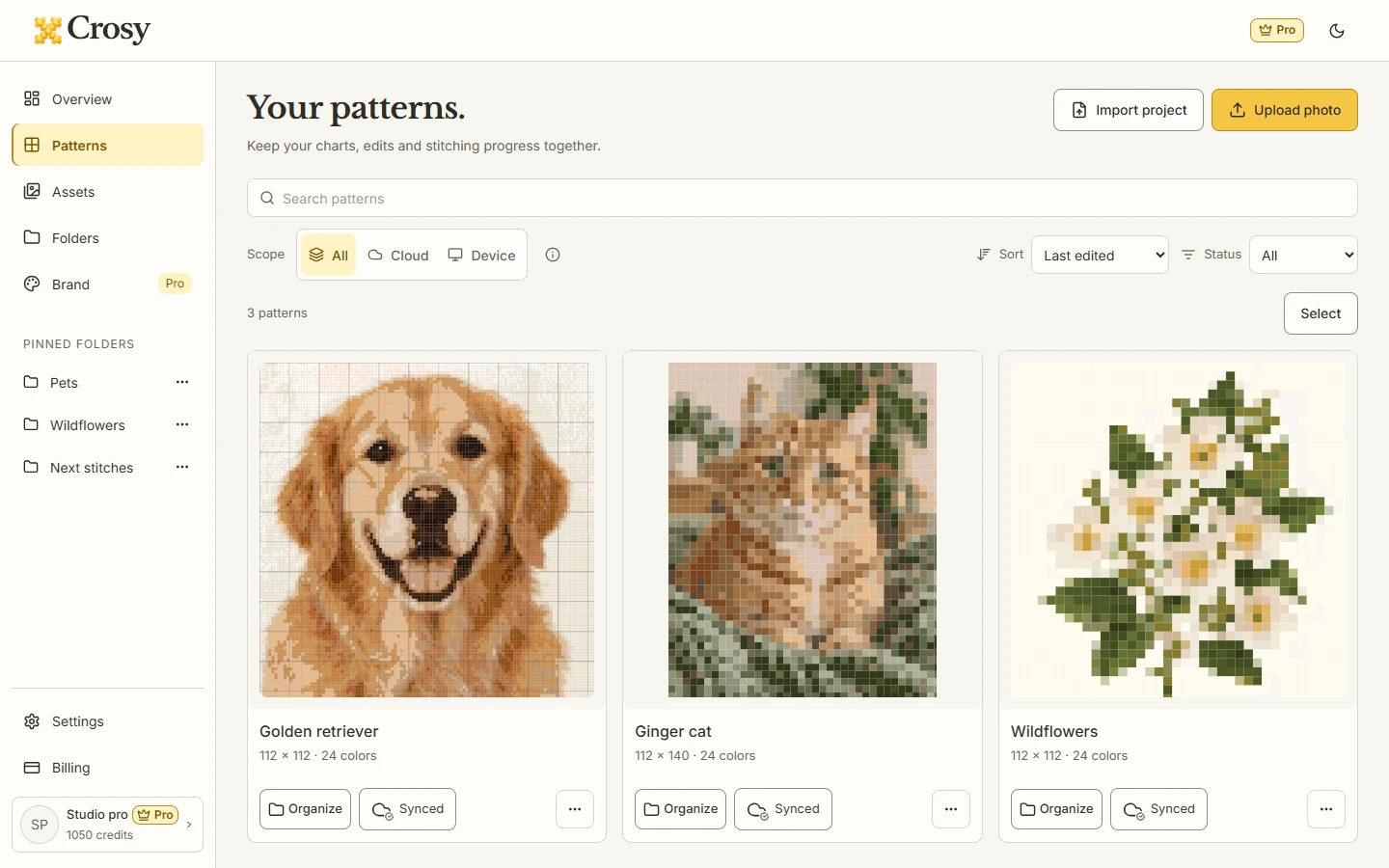
Choose Patterns in the Studio rail or View all beside Continue creating. The page starts with the current collection and a Search patterns field.
Expected result. The page shows pattern cards with their title, preview, progress and available actions.
Search by name
Type a distinctive part of the chart name into Search patterns. The list updates as you type; clear the field when you want the full scope again.
Expected result. Only matching pattern records remain, and the result count reflects the current search rather than the whole account.
Choose one location scope
Use All to combine records without duplicates, Cloud to show patterns with active cloud sync, or Device to show patterns without an active cloud copy. The three choices are one mutually exclusive scope.
Expected result. The selected scope stays visibly active and the help popover explains what Cloud and Device include.
Sort and check progress
Use Sort for Last edited, Newest created, Name or Progress. Use Status for All, In progress or Completed when you want to resume a particular stage.
Expected result. The list order or result set changes without mutating the pattern document.
Open or manage one card
Open the chart from its preview or name. Use Organize for folders, the cloud control for availability, and More for less common identity actions such as Rename or Delete.
Expected result. The action applies to the selected pattern identity and does not accidentally target a neighboring card.
See the task
If something does not look right
- If no pattern matches, clear Search patterns and set Scope to All before assuming the record is absent.
- If Cloud is unavailable while the account is loading or signed out, use Device or wait for the account state to resolve; a disabled control is not a Free plan result.
- If a card action fails, use the visible Retry or error message and reopen the list before repeating a destructive action.
Limits to keep in mind
- Cloud and Device are mutually exclusive filter memberships for one pattern: Cloud has sync on, while Device has no active cloud copy. A synced pattern still has a device copy. All combines both without duplicates.
- The library filter does not upload a device pattern, change progress or grant an account entitlement.
- Folder location and pattern location are separate facts; a cloud folder does not make a device-only pattern cloud.