Dashboard manual · Chapter 6 of 7
Configure Pro export branding
Set one author name and optional logo, inspect real PDF/image/SVG previews, and save the preference without changing the chart.
In this manual
Before you begin
- Sign in with an active Pro account to edit the Brand form.
- Have an author or brand name and, optionally, a PNG, JPEG or WebP logo no larger than 12 MiB and no more than 40 million pixels.
- Save at least one pattern when you want to inspect the real PDF, image and SVG previews.
What you will have
The account has one saved export identity and you have checked how it appears on available visual formats.
Steps
Open Brand
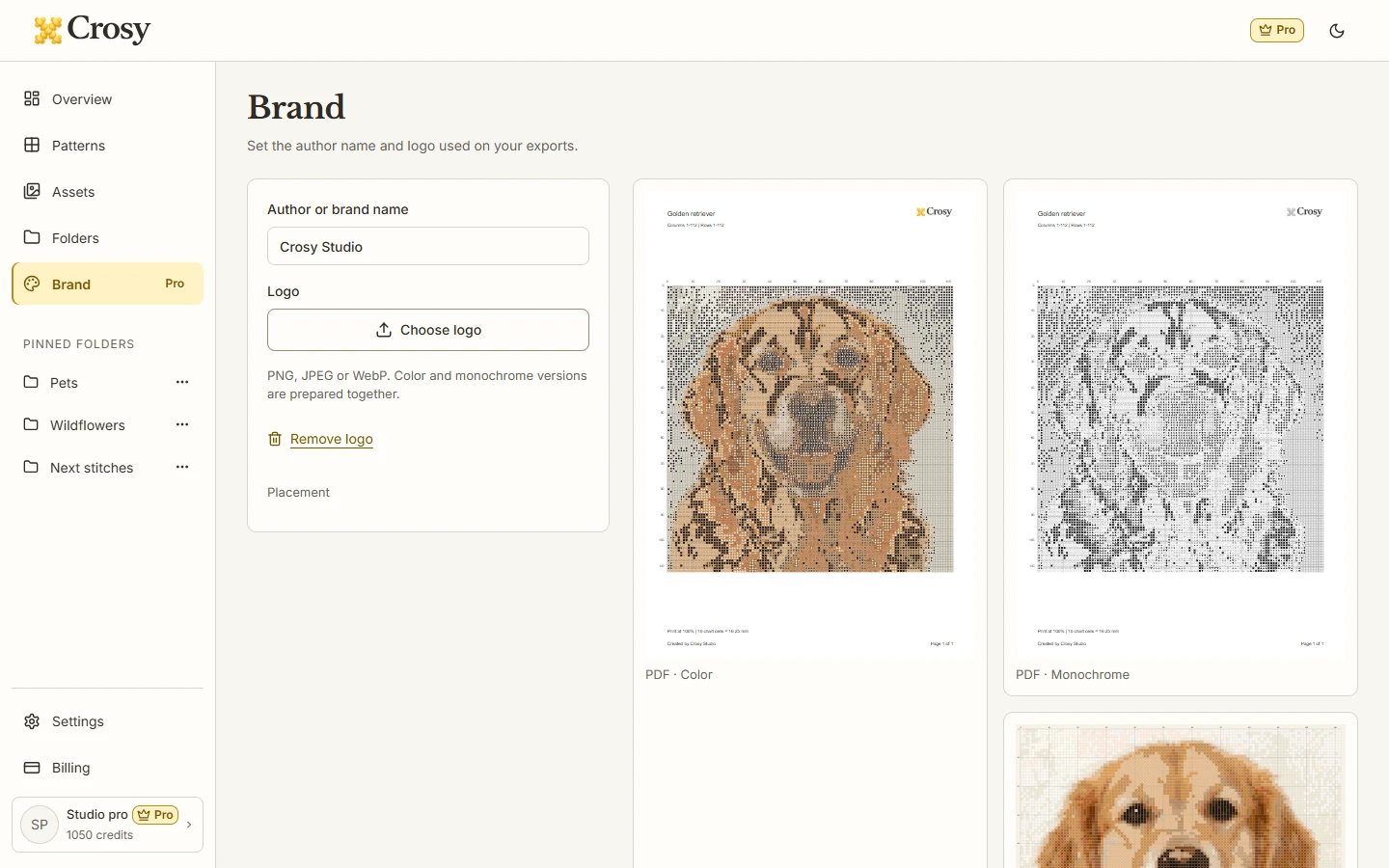
Choose Brand in the Studio rail. The page loads the stored author and logo preference before enabling the form.
Expected result. Loading and error states remain visible until the stored preference is resolved; an unavailable account is not treated as an empty brand.
Set the author name
Enter the name that should appear on exports. Keep it within the field limit and use a name you are comfortable sharing with a finished file.
Expected result. The form marks the preference as changed and keeps the chart itself untouched.
Choose or remove a logo
Choose logo and select a PNG, JPEG or WebP file within the 12 MiB and 40 million-pixel limits, or use Remove logo when the author name should stand alone. Color and monochrome versions are prepared together.
Expected result. The preview uses the selected identity, and no fallback logo is invented when the name has no image.
Inspect export previews
Wait for a saved pattern preview, then compare the PDF placement with the image and SVG footer. Open Placement when you need the stated location facts.
Expected result. The previews show which parts of the identity are visible on each visual format.
Save one preference
Choose Save after reviewing the name and logo. Use Remove brand only when you intend to clear the stored identity.
Expected result. The saved account preference is available for later visual exports, while the pattern and native backup remain unchanged.
See the task
If something does not look right
- If the stored preference fails to load, use Try again and wait for the account state before editing a blank form.
- If a logo is rejected, convert it to a supported PNG, JPEG or WebP image and choose it again. Do not paste a remote URL as a logo.
- If no saved pattern exists, save a pattern first; the page explains the prerequisite instead of showing a fabricated chart preview.
Limits to keep in mind
- Branding is a Pro preference for PDF, image and SVG visual files. Native Crosy backups do not carry the branding presentation.
- Changing a brand does not change chart data, source, progress or the 30-credit result unlock.
- Checkout availability follows the plan and payment connection status. This manual describes the available form and does not claim that a purchase is currently working.