Dashboard manual · Chapter 3 of 7
Manage originals and their usage
Keep source photos separate from patterns, see which originals are linked, and start a new pattern only when you choose to.
In this manual
Before you begin
- Sign in and open Your originals from Studio.
- Have a PNG, JPEG or WebP photo no larger than 12 MiB and no more than 40 million pixels when you want to upload a new original.
- Know whether you want to inspect, rename, remove or turn an original into a pattern.
What you will have
Your original library reflects the source files you intentionally saved, with usage filters that do not confuse storage with pattern creation.
Steps
Open Your originals
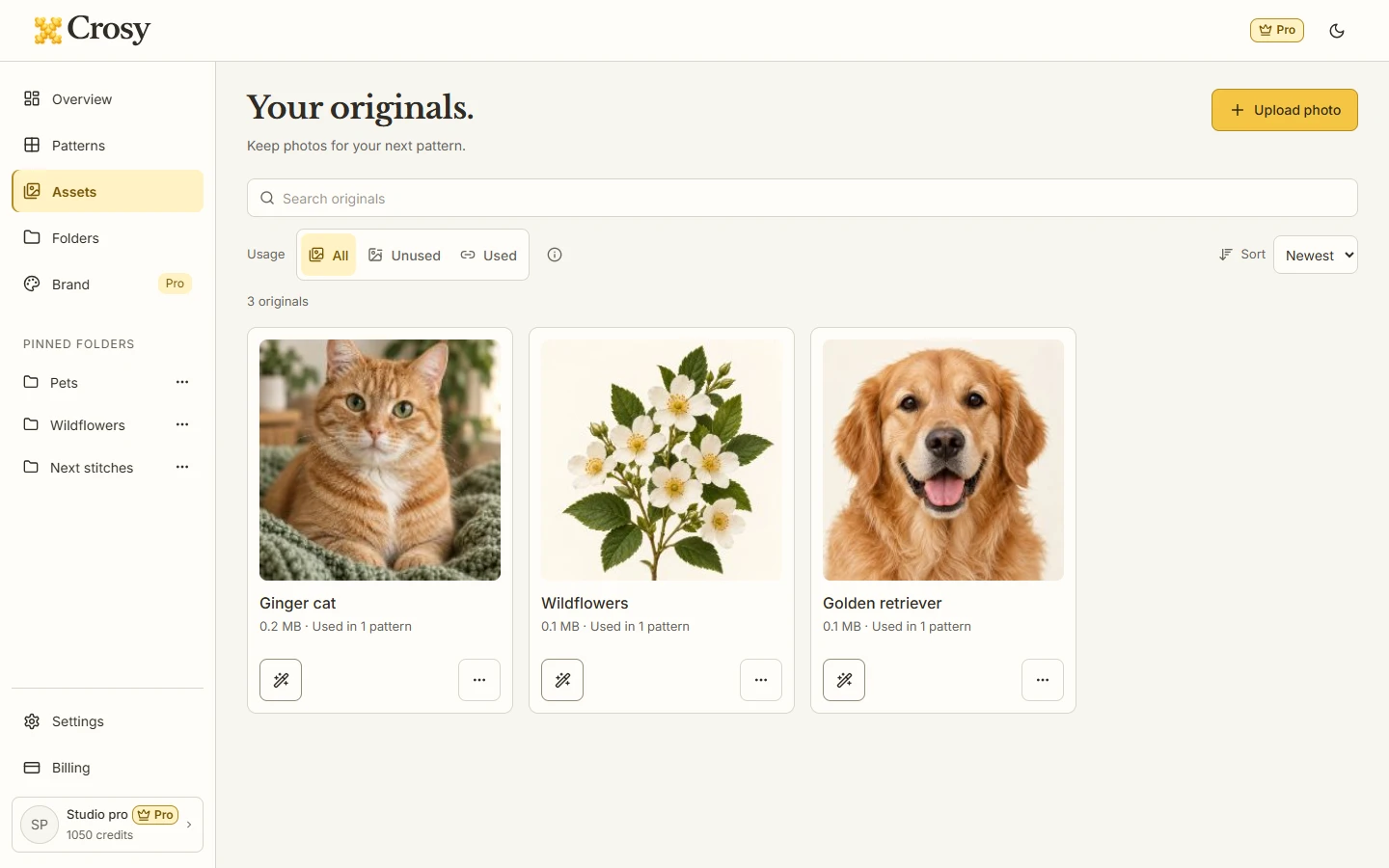
Choose Assets in the Studio rail or Photo library from Overview. Read the original card before choosing an action.
Expected result. The page shows original photos and a usage control labeled All, Unused or Used.
Upload a source for later
Choose Upload photo and select a PNG, JPEG or WebP image within the 12 MiB and 40 million-pixel limits. This saves the original to the account library; it does not silently start conversion or create a chart.
Expected result. The new original appears in Assets and is available for a later Make pattern action.
Filter by usage
Use All to see every saved original, Unused to find sources without a linked cloud pattern, or Used to see originals linked to cloud patterns.
Expected result. The count and cards follow the selected usage filter, while device-only patterns do not inflate the original usage count.
Make a pattern deliberately
Open the original card and choose Make pattern only when you want a new Workbench conversion. Review the handoff in Compare before Update.
Expected result. The Workbench opens with that source, while the saved original remains its own record.
Rename or remove with care
Use More for rename or remove. Check the confirmation and related pattern list before confirming a removal.
Expected result. Removing an original does not delete a pattern that already owns its source and progress.
See the task
If something does not look right
- If the upload fails, keep the source file and retry from Assets; no chart was created by the failed save-only action.
- If Used appears empty, check whether the linked patterns are cloud-enabled. Device-only patterns are intentionally outside this usage count.
- If an original is removed by mistake, stop before creating another pattern and check the linked pattern’s own source. The pattern lifecycle is separate from the original library record.
Limits to keep in mind
- Original upload and organization do not debit credits. Complete pattern results still use the separate source unlock rule.
- Free and Pro source storage allowances are shared account limits: 36 MB for Free and 1 GB for Pro.
- The original library is cloud account storage. It is not a promise of a trash or recovery window.