Dashboard manual · Chapter 4 of 7
Organize and pin folders
Create one-level pattern folders, keep frequently used collections near the Studio rail, and remove a folder without deleting its patterns.
In this manual
Before you begin
- Sign in and open Folders from the Studio rail or the Overview summary.
- Have at least one pattern when you want to use Organize or inspect a folder.
- Choose a short folder name that describes a real collection.
What you will have
Patterns are assigned to the intended folder, pinned order is clear, and deleting a folder leaves the patterns available.
Steps
Create a folder
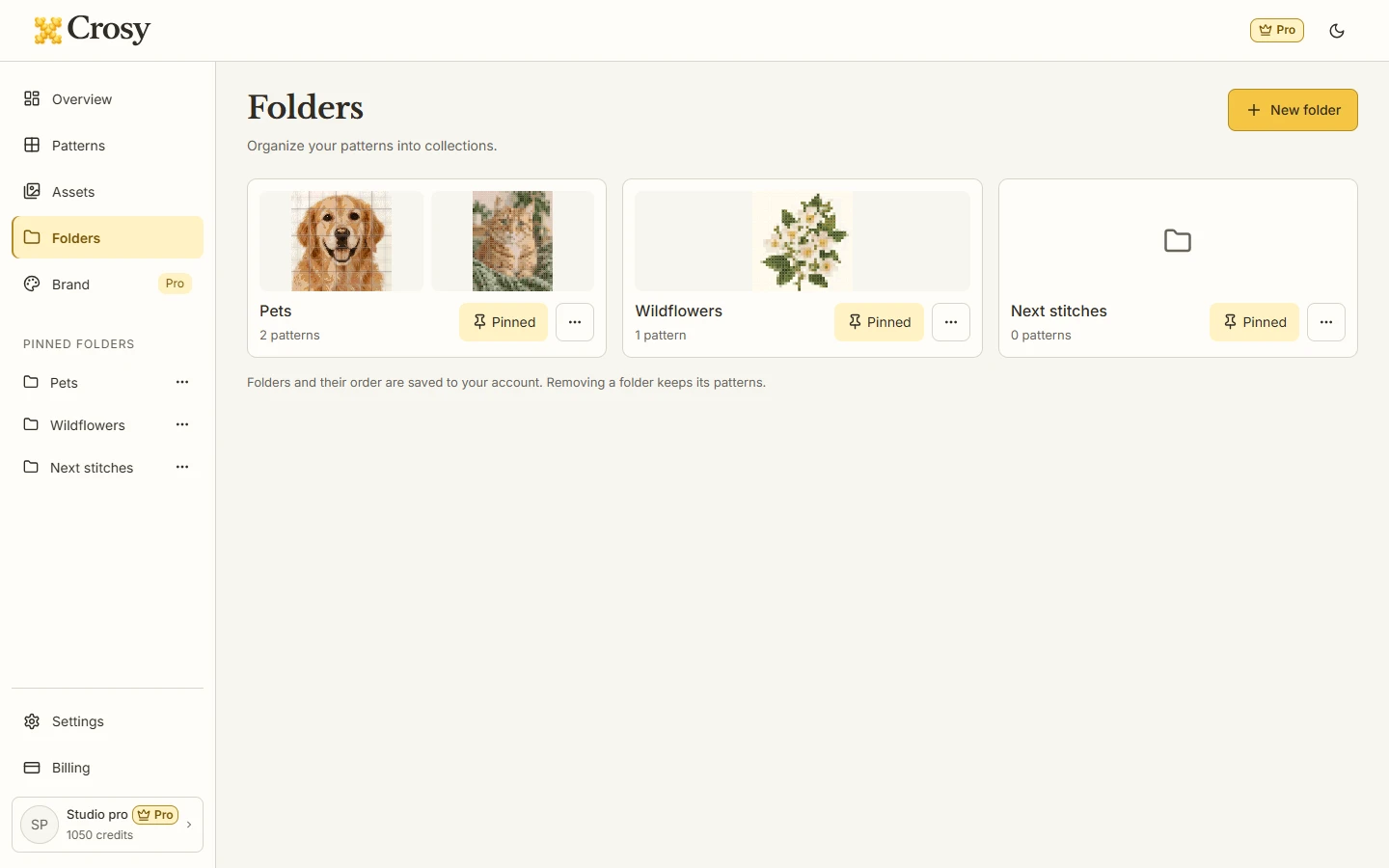
Open Folders and choose New folder. Enter a name and confirm creation. Folder names and order are saved to your account.
Expected result. The new folder appears in the directory and is available as a destination for pattern organization.
Pin the folder you use often
On a folder card choose Pin, or choose Pinned when it is already pinned. Use the existing reorder controls when the sidebar order needs to change.
Expected result. The folder appears in the pinned-first order shared by the directory and the Studio rail.
Organize a pattern
On a pattern card choose Organize, select an existing folder or create one in the dialog, then save the move. Use the selection bar for a visible batch of patterns when appropriate.
Expected result. The chosen patterns appear in the folder without changing their chart, progress or Cloud/Device state.
Open a folder and review originals
Open a folder from the directory. Review its patterns and the separate Originals used in this folder section when it contains linked cloud originals.
Expected result. The folder view shows its own patterns and deduplicated linked originals without changing the global Assets filters.
Rename or delete a folder
Use More on the folder card to rename or delete it. Read the confirmation before a delete and remember that deletion removes the filing relationship only.
Expected result. Renaming updates the collection name; deleting leaves the patterns available outside that folder.
See the task
If something does not look right
- If a folder is missing, return to the directory and check its location or pinned order before creating a duplicate.
- If an organize action reports an error, keep the current pattern selection and retry after the folder list reloads.
- If a folder is deleted, use All or Search patterns to find its patterns again; the folder action is not a pattern delete.
Limits to keep in mind
- Folders are one level deep; a folder cannot become a nested folder hierarchy.
- Pinned folders are navigation order, not recent visits, and there is no three-folder cap.
- Cloud folders store your organization details. Pinning or moving a pattern does not upload a Device pattern.