Dashboard manual · Chapter 5 of 7
Manage enabled cloud patterns and quota
Choose cloud memberships one pattern at a time, read account usage, and recover from count or source-storage limits without losing existing work.
In this manual
Before you begin
- Sign in and open Patterns or a pattern in the Workbench.
- Know whether this pattern belongs in the account cloud copy.
- Read the account usage values before adding a new cloud pattern or source photo.
What you will have
You understand which patterns have sync on or no active cloud copy and what a reached count or byte limit actually pauses.
Steps
Read the account usage first
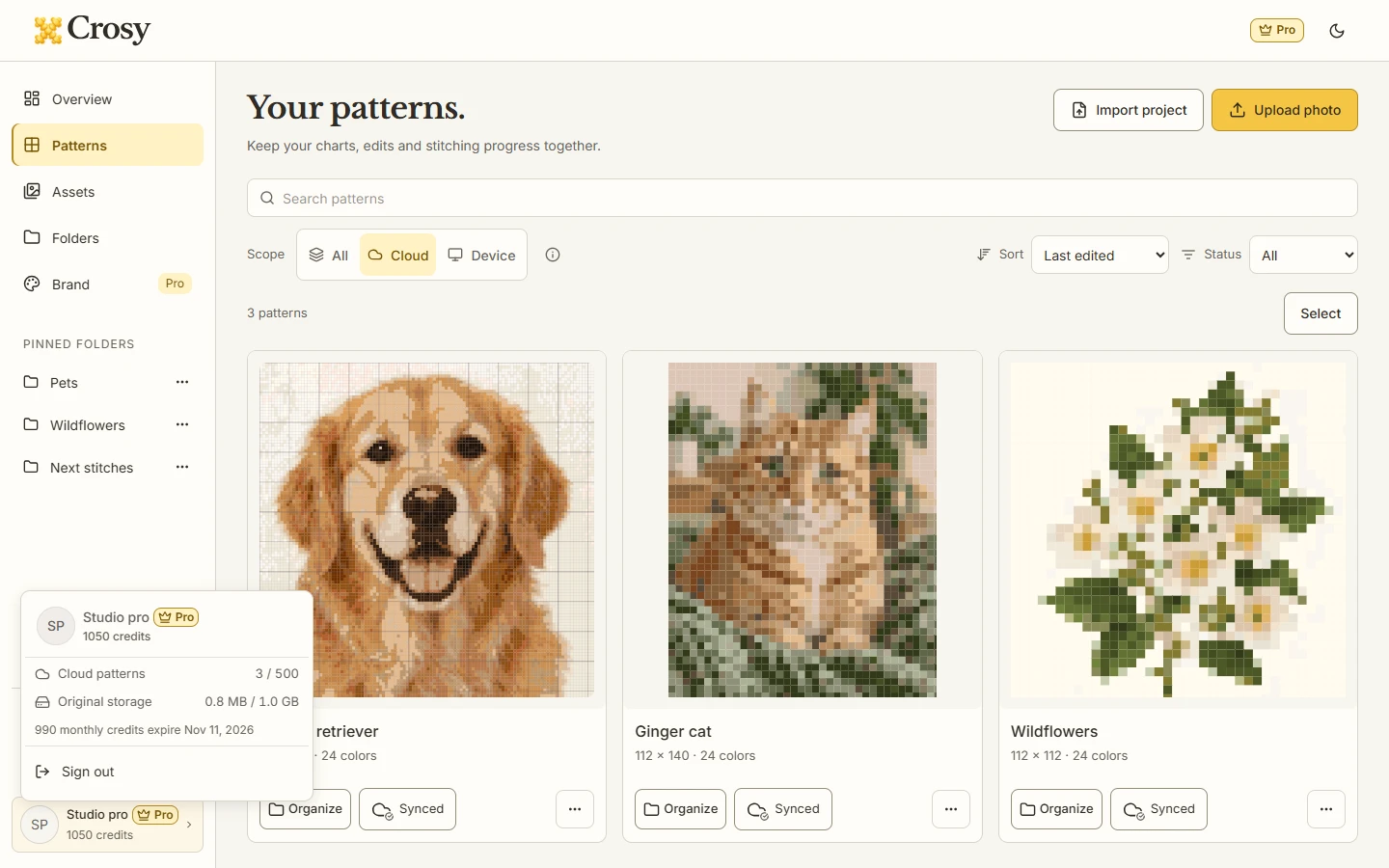
Open the account card or Settings overview and read Cloud patterns and Original storage separately. Check the current plan before choosing another membership.
Expected result. The usage values show the account allowance and the actual affected resource instead of combining pattern count and bytes.
Enable or disable one pattern
Use the cloud control on a pattern card or in Workbench Info. Choose Turn on cloud sync only for the current pattern; choose Turn off cloud sync when you want it back in Device.
Expected result. The card and filter reflect whether sync is on or there is no active cloud copy for that pattern.
Understand the plan defaults
Free accounts explicitly choose up to three patterns. Pro accounts enable new patterns by default, while an explicit per-pattern opt-out stays remembered across reopening and account sessions.
Expected result. An upgrade changes the default for new patterns but does not silently upload existing local patterns.
Recover from a reached limit
When the pattern count limit is reached, stop adding new cloud memberships. When source storage is full, stop adding originals or growing source data. Review existing records and the account plan before changing anything.
Expected result. Existing enabled patterns remain available and non-growing updates can continue; only the affected new membership or growth is paused.
Use state-specific recovery
For Pending or Syncing, wait for the latest confirmation. For Sync failed choose Retry. For Conflict choose Review versions and compare before replacing one side.
Expected result. The control remains truthful about the latest confirmed state and never turns a local label into a completed cloud update.
See the task
If something does not look right
- If cloud data is unavailable, keep the Device copy and retry after the account or connection state recovers; do not delete the local pattern to make room.
- If an account limit is reached, use All and Device to keep working on existing records. A limit does not remove enabled patterns.
- If a per-pattern opt-out seems to have returned, reopen the pattern after the account state loads and confirm the explicit setting before enabling it again.
Limits to keep in mind
- Free allows up to three active cloud patterns and 36 MB of original storage. Pro allows 500 active cloud patterns and 1 GB of original storage.
- Count limits block new cloud memberships; byte limits block source growth. Existing non-growing updates can continue.
- Cloud sync does not promise a retention date, termination recovery or a successful write after abrupt browser closure.