Workbench manual · Chapter 6 of 7
Save and manage sync
Keep a device copy, enable cloud membership deliberately, and understand the six sync states without treating a label as proof that the cloud copy is current.
In this manual
Before you begin
- Have an applied chart and any important progress saved locally first.
- Sign in when you want to enable cloud sync or open the Dashboard.
- Know whether this pattern should count toward the account cloud limit.
What you will have
The pattern has a clear sync state, and you know what to do when sync is waiting, fails or conflicts.
Steps
Start with the device copy
After an edit or Crafting mark, wait for the local save status to settle. Device saving keeps the recoverable copy in this browser and does not spend credits.
Expected result. The applied chart and progress remain available in this browser even when no account is signed in.
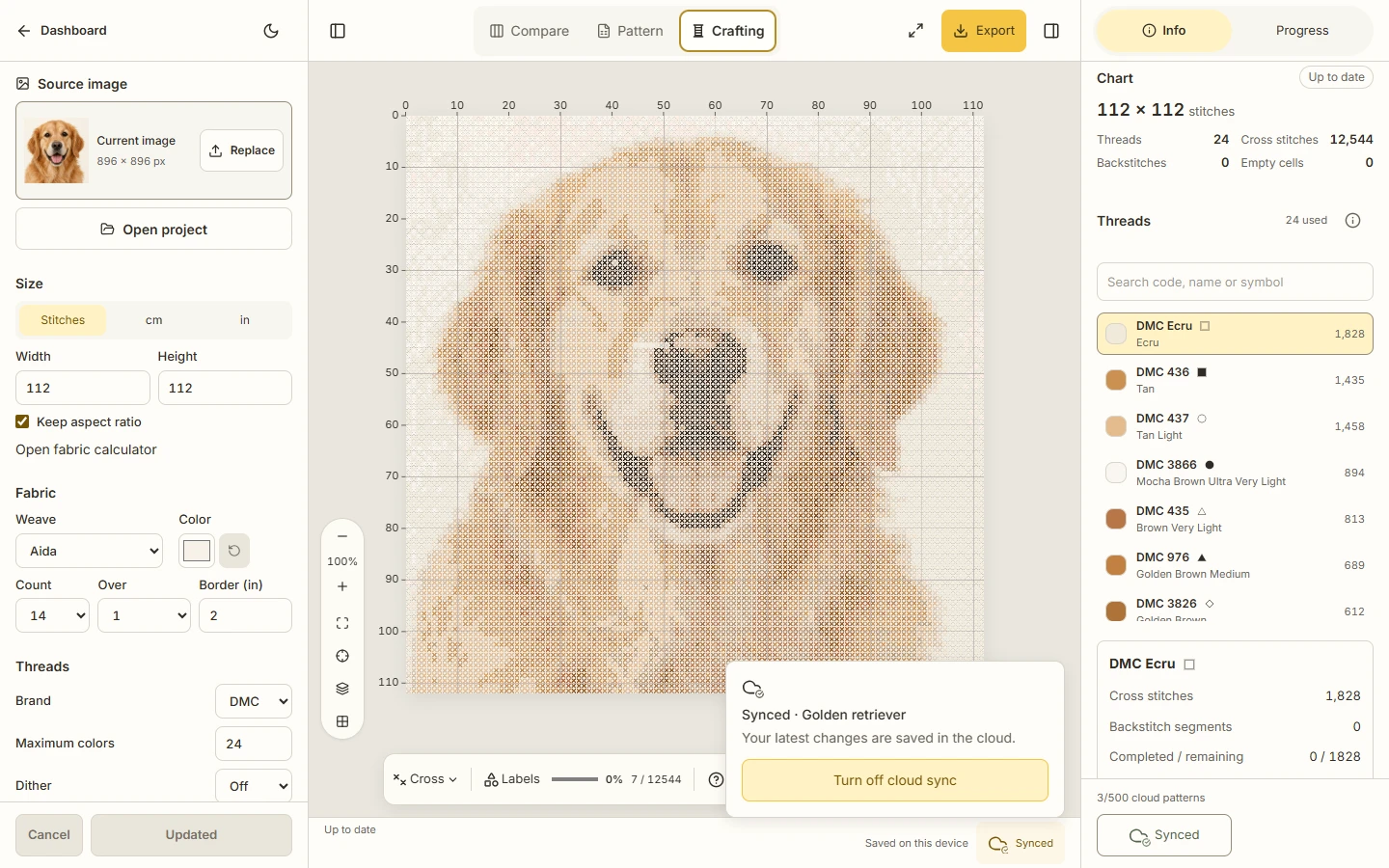
Open the cloud control in Info
With an account loaded, open the Info footer and read the cloud control. In library filters, Cloud means sync is on; Device means there is no active cloud copy. A Cloud pattern is still saved on this device.
Expected result. The control shows Sync off, Pending, Syncing, Synced, Sync failed or Conflict from the latest confirmed state.
Enable one pattern deliberately
On Free, choose Turn on cloud sync for a pattern you want in the cloud. On Pro, a new pattern starts enabled unless you explicitly turn it off. Existing device patterns do not upload automatically after an upgrade.
Expected result. A confirmed enable action puts this pattern in the Cloud filter while it remains saved on this device; until then it appears under Device.
Let applied changes sync
Continue editing or marking progress after the cloud membership is enabled. Wait for Synced before closing when the remote copy matters, and use the control explanation to understand Pending or Syncing.
Expected result. Applied source/settings, Cross and Backstitch completion and the original source follow the enabled cloud pattern, while pending Update drafts stay local.
Resolve a failure or conflict
For Sync failed, choose Retry after checking the device copy. For Conflict, choose Review versions and compare the current versions before accepting a replacement. Turn off sync only when you want the pattern back in Device.
Expected result. The control keeps an actionable state and does not claim a successful cloud update until the app confirms it.
See the task
If something does not look right
- If a sync action fails, keep editing on the device copy and retry from the same control. Do not assume a failed state removed local changes.
- If a conflict appears, stop making unrelated edits, compare the device and cloud versions, and choose the explicit review action before replacing anything.
- If a count or byte limit is reached, existing enabled patterns remain available and non-growing updates can continue; new memberships or source growth wait for available allowance.
Limits to keep in mind
- Free can choose up to three active cloud patterns and 36 MB of original storage. Pro allows 500 active cloud patterns and 1 GB of original storage.
- Turning on sync is an account action. It does not purchase Pro, spend credits or promise a retention window after a browser or device failure.
- A short sync delay is not a guarantee that an abrupt browser closure will finish a pending update; keep a native backup for important work.