Workbench manual · Chapter 4 of 7
Review Clean and Protect
Preview isolated-stitch and nearby-color changes, protect intentional details, and keep the final Apply decision reversible.
In this manual
Before you begin
- Open a chart with details you can compare against its source or key.
- Enter Pattern mode and open Clean from Pattern tools.
- If you plan to Apply a Clean result, use an active Pro account; everyone can preview and review the proposed change.
What you will have
You either cancel a Clean preview or apply one reviewed, undoable chart edit with protected details left in place.
Steps
Open Clean and choose one pass
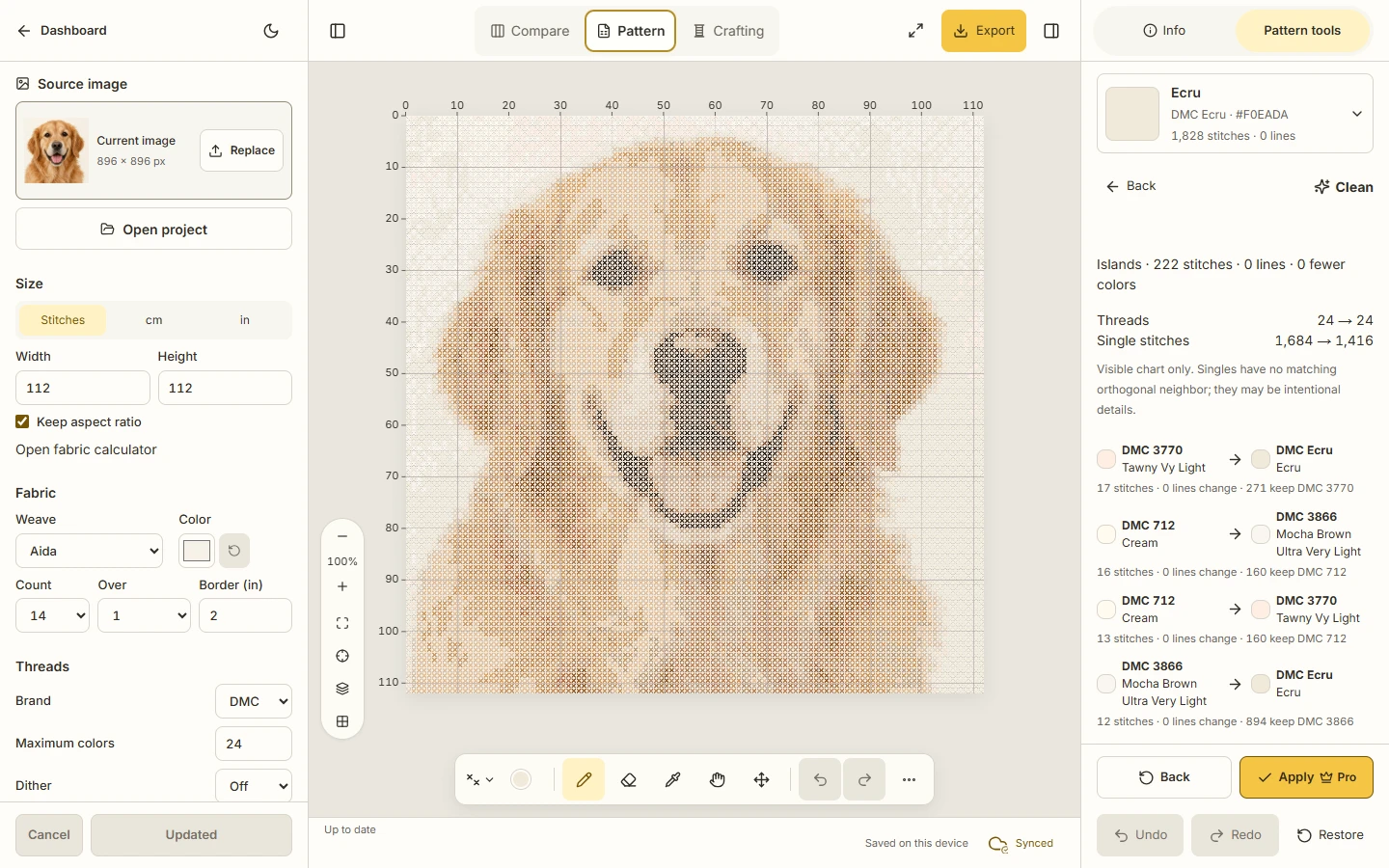
Open Clean from Pattern tools and start with Islands or Merge. Islands reviews isolated same-color areas; Merge reviews nearby color changes and proposes a mapping. Work on one pass at a time.
Expected result. The Clean panel shows the selected operation and its bounded diagnostic instead of combining unrelated changes.
Protect details that must survive
Open Protect and enable Details when narrow or diagonal details and Backstitches matter. Enable Thread when the selected color should stay out of the Clean pass, or add a protected area by dragging on the chart.
Expected result. The panel lists the protected areas and states that protection applies to Islands and Merge only.
Preview the actual chart change
Choose Preview, then compare the before and after chart, swatches, DMC codes, stitch counts and any changed lines. Use Back when the proposed result is not useful.
Expected result. The preview remains read-only until Apply, and the chart stays unchanged when you go Back.
Apply one reviewed change
If the preview preserves the detail you need, choose Apply. A Free or signed-out account receives the current Pro or sign-in guidance without changing the pattern; an eligible Pro account can apply the result.
Expected result. One accepted Clean edit is recorded and can be undone. A rejected or cancelled Apply leaves the original chart intact.
See the task
If something does not look right
- Use Back to leave an uncommitted preview. Do not navigate away expecting a preview to become an edit.
- Use Undo after Apply to restore the prior chart state. Reopen Clean for a separate Islands or Merge pass rather than stacking an unreviewed combination.
- If Clean asks you to sign in or view Pro, keep the preview for review and return after the account check; the preview itself does not grant Apply access.
Limits to keep in mind
- The single-stitch count is a review signal based on same-color orthogonal neighbors, not a universal quality score.
- Protect does not block ordinary Draw, Erase or Move actions. It protects the selected Clean operations only.
- Clean does not certify the photograph or remove every dispersed stitch. Preserve the original and inspect the changed chart before exporting.