Workbench manual · Chapter 7 of 7
Export, print and reopen a backup
Choose the file that fits the task, then compare the preview with a real seven-page PDF and editable backup from the tutorial chart.
In this manual
Before you begin
- Finish the chart changes you want to export and let the applied chart update settle.
- Have an account and at least 30 credits when you want a complete downloadable result.
- Decide whether the receiving workflow needs a printable file, a visual file, an exchange file or a complete Crosy backup.
What you will have
You have a downloaded file whose visible scope and key you checked, plus a native backup when source, progress or hidden chart parts matter. The examples below use the same 112 × 112 Golden retriever chart shown throughout this manual.
Steps
Open Export from the applied chart
Choose Export in the Workbench header after Update has applied the chart you want. Preview, editing and device saving remain available before a download is unlocked.
Expected result. The dialog opens with the current applied document and the format-specific Options or Preview surface.
Choose a format by purpose
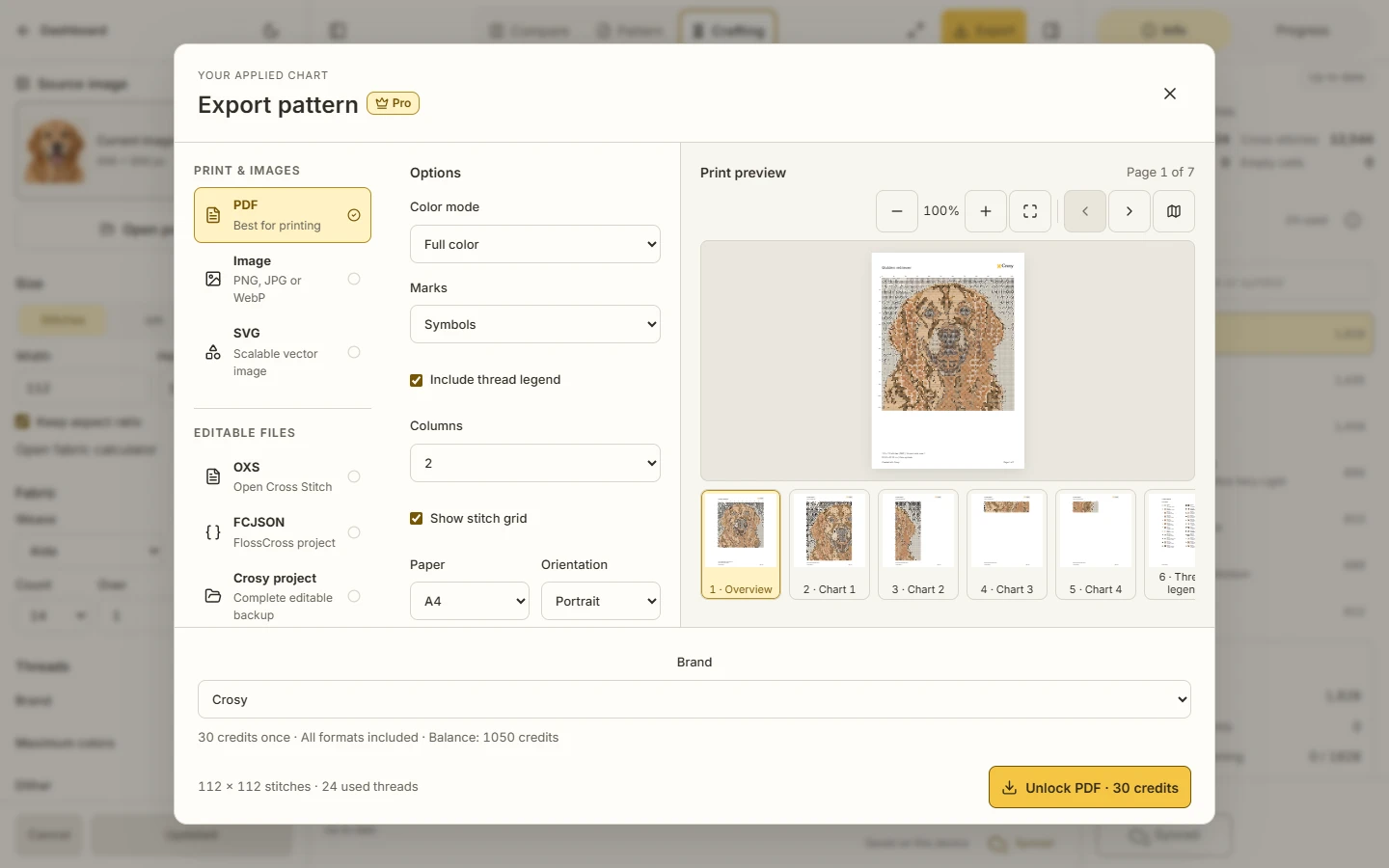
Use PDF for a printable chart, PNG/JPG/WebP for an image, SVG for a scalable visible chart, OXS or FCJSON for their restricted exchange scope, and Crosy for an editable native backup.
Expected result. The dialog exposes only the settings that belong to the selected format instead of implying that every format preserves the same fields.
Check paper, marks and the key
For PDF, choose paper, orientation, sizing, marks, grid and legend options. For PNG, JPG, WebP and SVG, inspect the visual Preview and compare its marks with the thread key. For Crosy, OXS and FCJSON, use Options and inspect the chart in the Workbench before exporting. Print PDF at 100% when physical scale matters.
Expected result. Visual formats expose a preview, while Crosy, OXS and FCJSON expose Options; you verify the chart and key before exporting either kind. Browser print scaling is not mistaken for Crosy print size.
Unlock the complete result once
Sign in and confirm the 30-credit unlock when the complete result is ready. The same source and later same-source edits can use the unlock again without another 30-credit charge; replacing the photo creates a new source.
Expected result. The confirmation shows the balance and resulting balance before the unlock, and cancelling does not spend credits.
Keep and reopen a native backup
Download Crosy when the source, saved details, progress or the complete chart may matter later. Reopen it through Open project or Studio import, then verify the key and layers in the receiving workflow.
Expected result. The native project can be inspected again in Crosy; an exchange file is treated as a narrower handoff rather than proof of full round-trip compatibility.
See the task

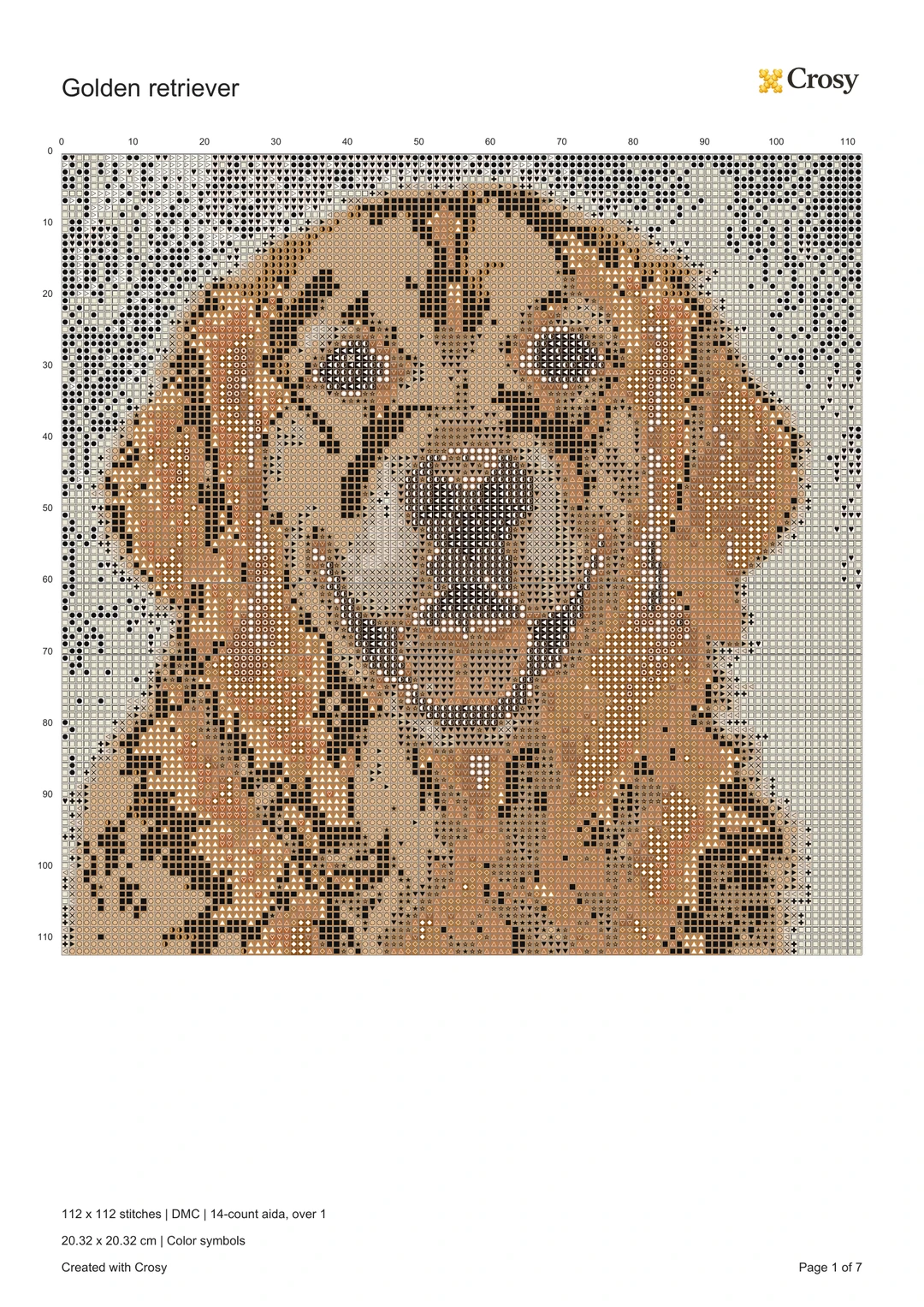
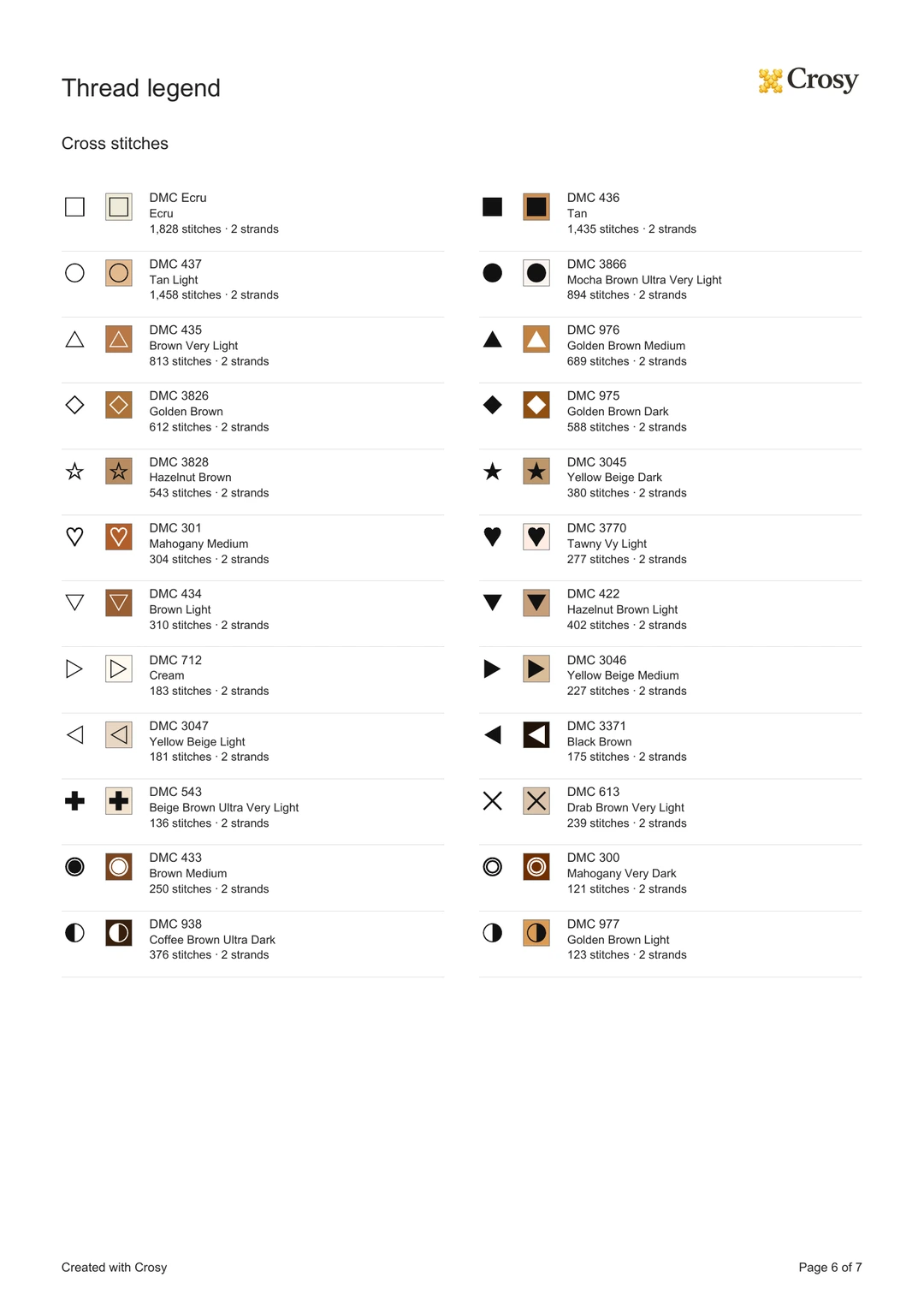
Open the real files
If something does not look right
- If a preview fails, keep the applied chart and retry after checking the selected format and options. A failed preparation does not prove that a download completed.
- If you do not have enough credits, stop at Preview or use the account route that offers the available purchase path; no unlock is created for an insufficient balance.
- If a receiving app drops a field, return to the native Crosy backup. OXS and FCJSON do not carry Crosy progress, source, exclusions or off-board needles.
Limits to keep in mind
- All eight complete formats use one 30-credit unlock per source: PDF, PNG, JPG, WebP, SVG, OXS, FCJSON and complete Crosy. Pro downloads still use credits.
- Visual formats include the visible board and may warn about off-board content. Crosy retains the complete chart, source details and progress.
- The current model supports full Cross and Backstitch data. Physical printing and another application’s exchange behavior still require your own review.