Dashboard manual · Chapter 1 of 7
Resume work from Overview
Use Your Studio as the starting point for a recent pattern, a new photo, a photo library item or a blank chart.
In this manual
Before you begin
- Sign in to open Dashboard and your private library pages.
- If you are continuing local work, use the same browser that holds the device project.
- If you want a new chart, have a PNG, JPEG or WebP photo within 12 MiB and 40 million pixels, or choose a blank chart.
What you will have
You open the intended project or creation path without confusing a saved original with a generated pattern.
Steps
Open Your Studio
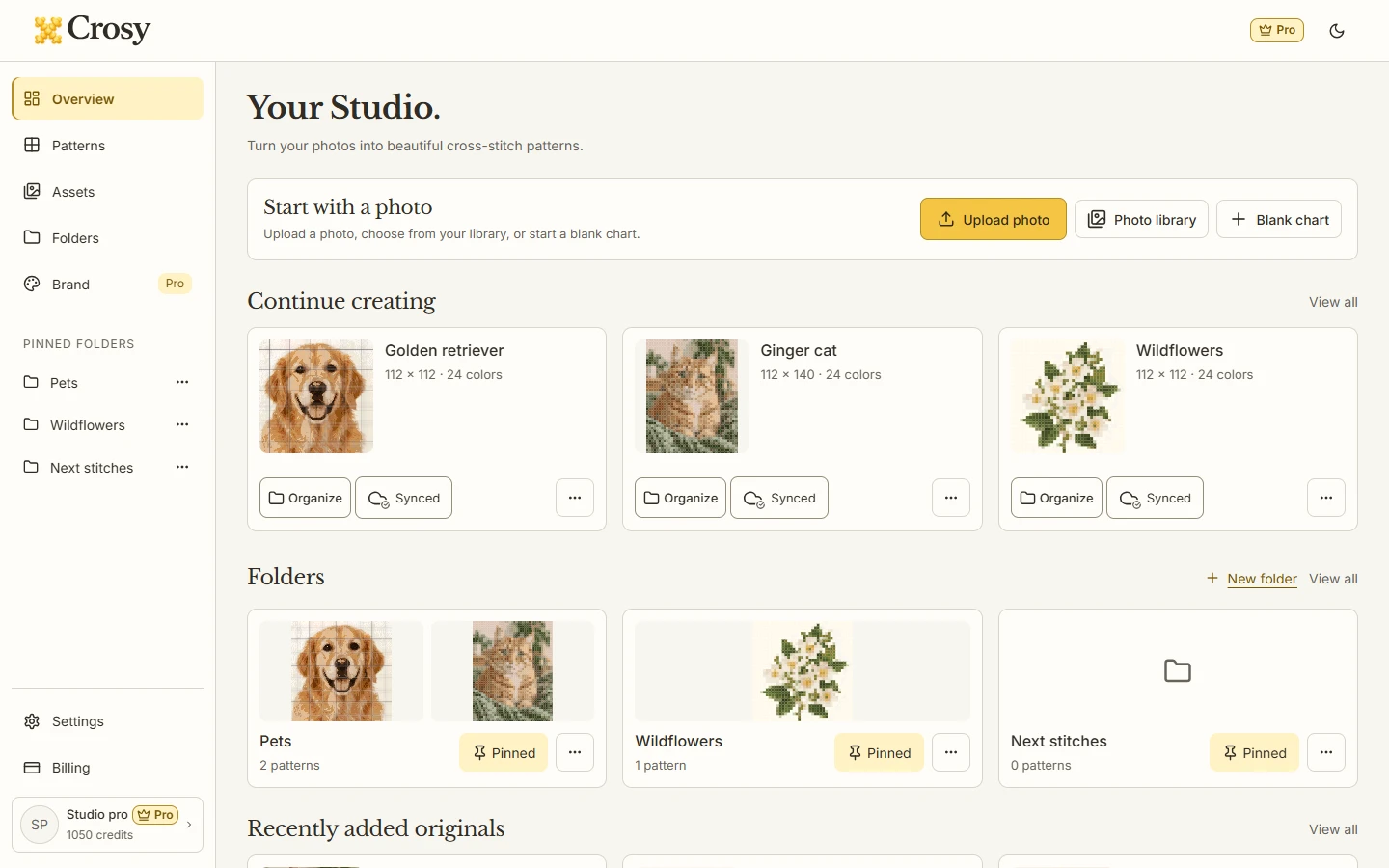
Open Dashboard after signing in. The Overview shows Start with a photo, Continue creating, folders and recently added originals when those records exist.
Expected result. The page restores the Studio layout and loads your device and cloud records instead of showing another public header.
Choose the right starting action
Choose Upload photo to make a pattern, Photo library to inspect saved originals, or Blank chart to open a blank editor. Uploading an original to the library is a save-only action.
Expected result. Upload photo sends you to the Workbench handoff, Photo library opens Assets, and Blank chart opens the blank creation form.
Continue a recent pattern
In Continue creating, select the pattern preview or name you want to reopen. Use the recent summaries as shortcuts, then confirm the chart title and progress in the Workbench.
Expected result. The chosen project opens with its current chart and progress, not a newly generated replacement.
Use the folder and original summaries
Open View all beside Patterns, Folders or Recently added originals when the Overview summary is not enough. Keep the task in the dedicated collection page rather than adding another Dashboard filter.
Expected result. The full collection page provides its own search, scope or usage controls while the Overview stays a short resume surface.
See the task
If something does not look right
- If Dashboard redirects to sign in, complete the account step and return to the requested Studio destination; private routes do not expose account data while signed out.
- If a project is missing from the recent summary, open Patterns and use its All, Cloud or Device scope before creating a duplicate.
- If the library is still loading or reports an error, use Retry and do not assume an empty state means the project was deleted.
Limits to keep in mind
- Dashboard is account-gated; Workbench editing and device saving remain available without a Dashboard account.
- Saving an original in Assets does not generate a chart or spend credits. Choose Make pattern when you are ready to create one.
- Signing in does not silently upload every existing local pattern. Enable cloud membership per pattern when you want it available in Cloud.