Cross stitch dithering: compare On and Off
Compare Dither On and Off using the same source, chart size and four-color palette. Follow real Crosy screenshots and download both complete worked examples.
By Crosy Editorial Team · Last updated: 2026-10-15
See what changes before choosing a setting
Dithering distributes nearby thread colors across chart cells to approximate intermediate shades. In Crosy, Dither Off maps cells without this error diffusion; Dither On uses Floyd–Steinberg error diffusion. It can exchange large bands of one color for a more scattered mix. Neither setting is a quality score, and On does not add more colors to the selected palette.
This lesson compares two original teaching images: a smooth teal gradient and four flat color bands. Each result is 48 × 32 cells, with 1,536 full Crosses and four used colors. Within each pair, the source, selected palette, size, crop and adjustments are identical. Only Dither changes. These are screen chart examples, not photographs of stitched fabric.
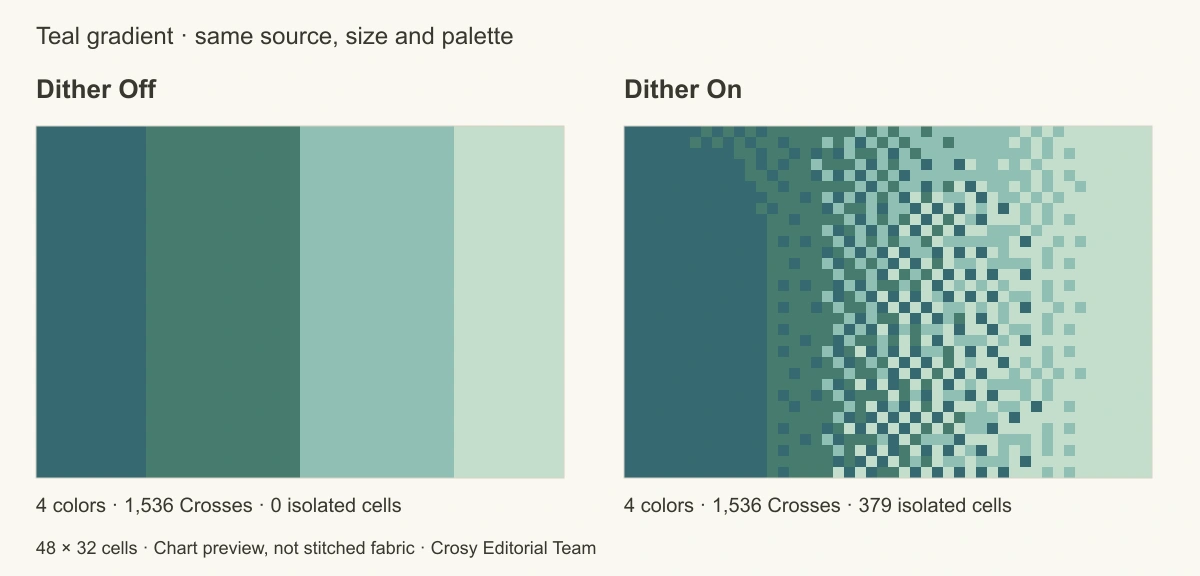
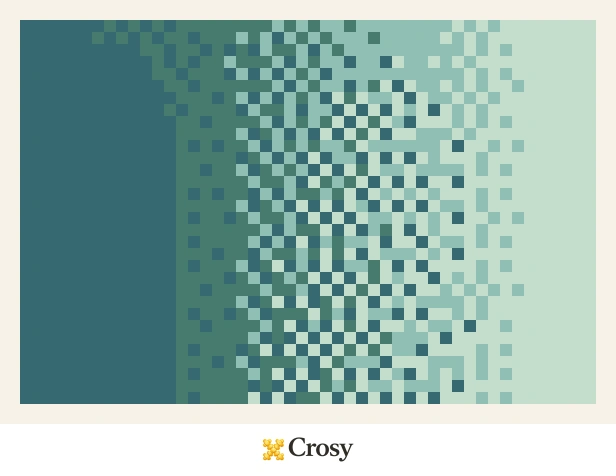
The same gradient converted with Dither Off (left) and On (right). These previews use the actual downloadable chart cells, at matching scale. Open the image at full size to inspect the individual cells.
Download the gradient source PNG and flat-band source PNG. Both are 480 × 320 pixels. You may use and adapt these original teaching images. The complete reading files and editable results are linked below.


1. Set up a controlled comparison
- Open Crosy's photo upload and choose Upload photo. Select the gradient PNG. The first upload generates a chart automatically; it does not need an extra Generate click.
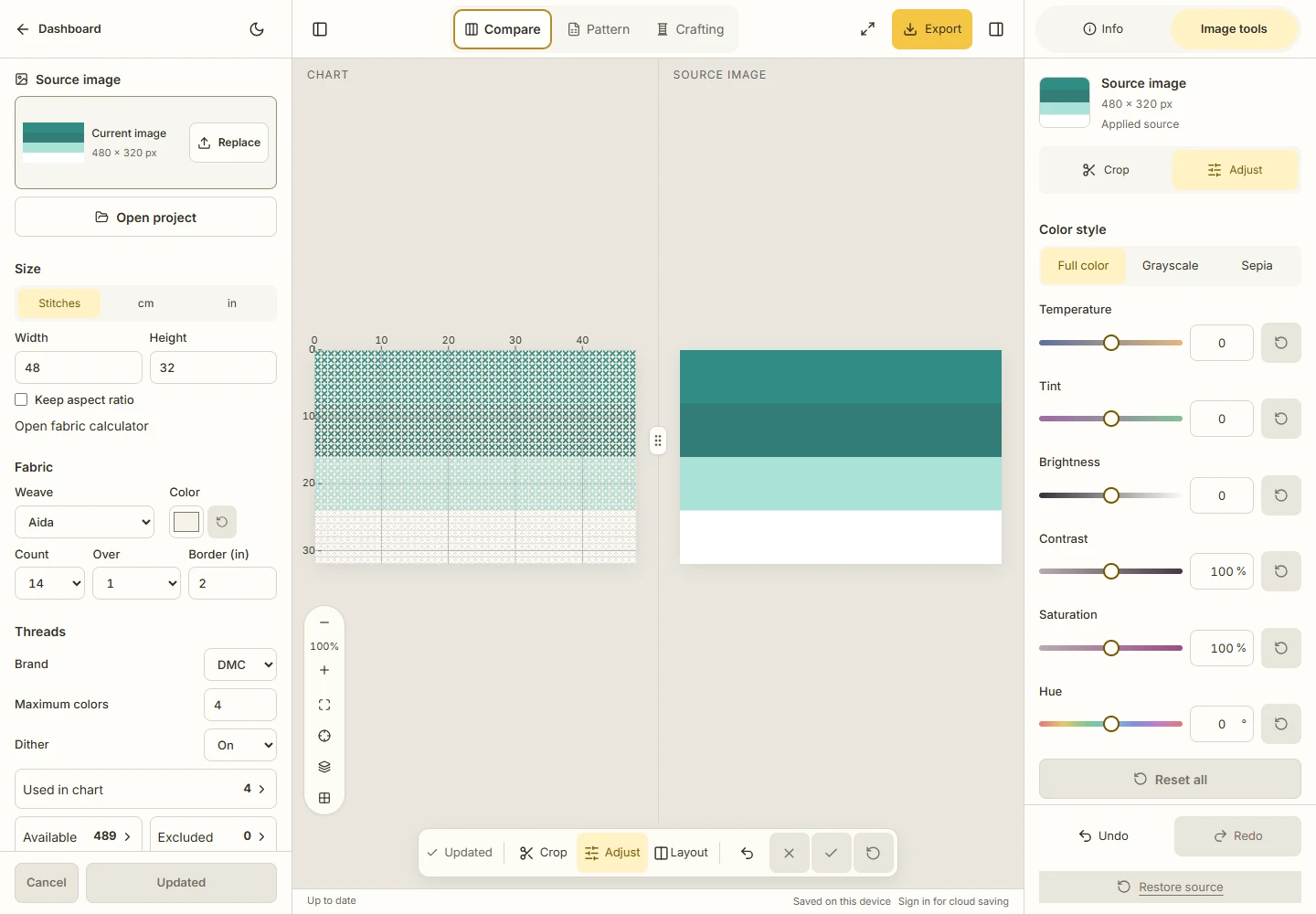
- In Setup, use Stitches. For this exercise, turn off Keep aspect ratio, enter Width 48 and Height 32, and set Maximum colors to 4. Keep Dither Off.
- Keep the full rectangular image, no excluded colors, and the default image adjustments: Full color; Temperature, Tint, Brightness and Hue at 0; Contrast and Saturation at 100%. This example uses Aida, Count 14, Over 1. Those fabric settings do not make a screen color a physical thread match.
- Choose Update. Wait until the button reads Updated and the status says Saved on this device. In Compare, the chart is on the left and the source image is on the right.
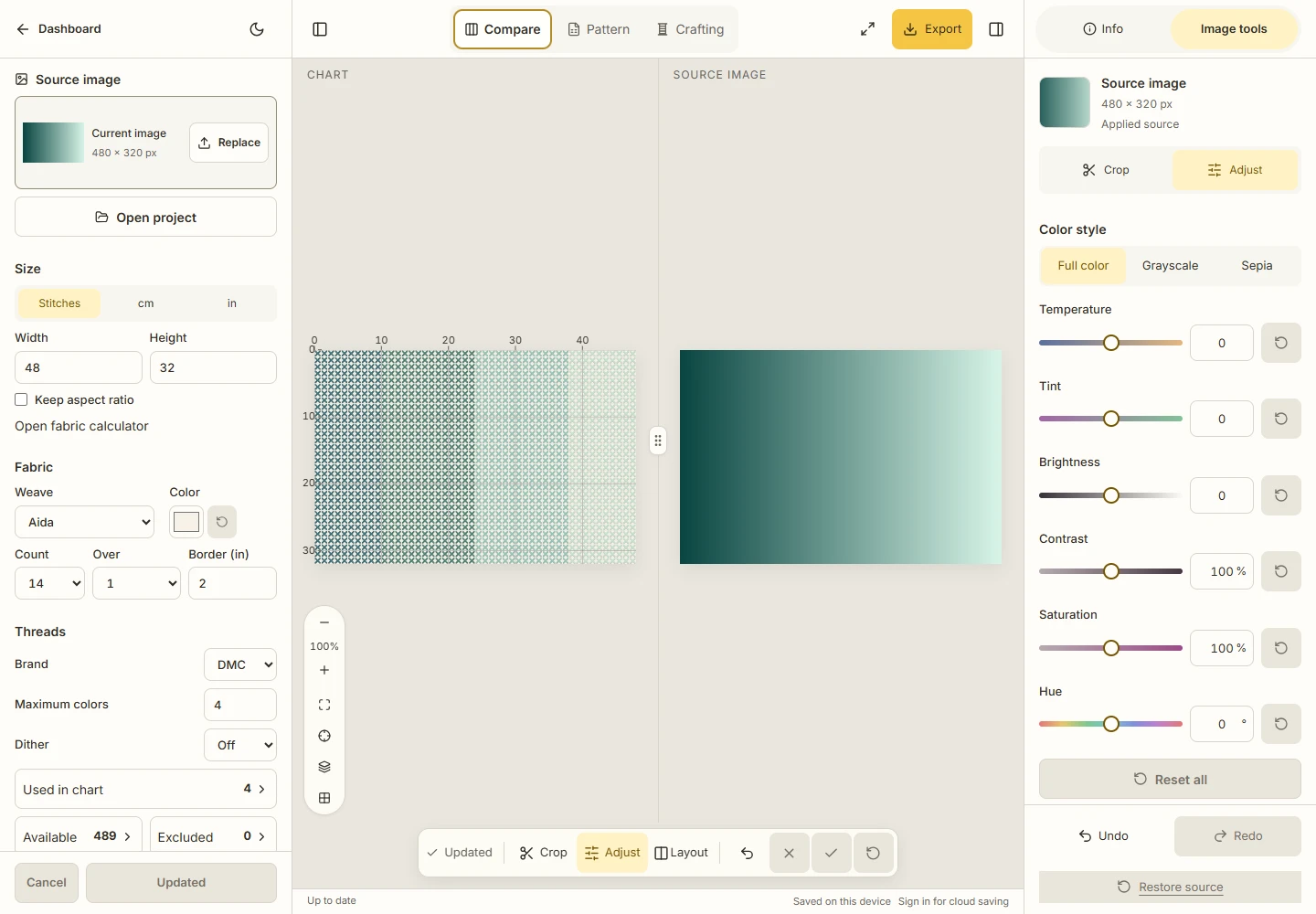
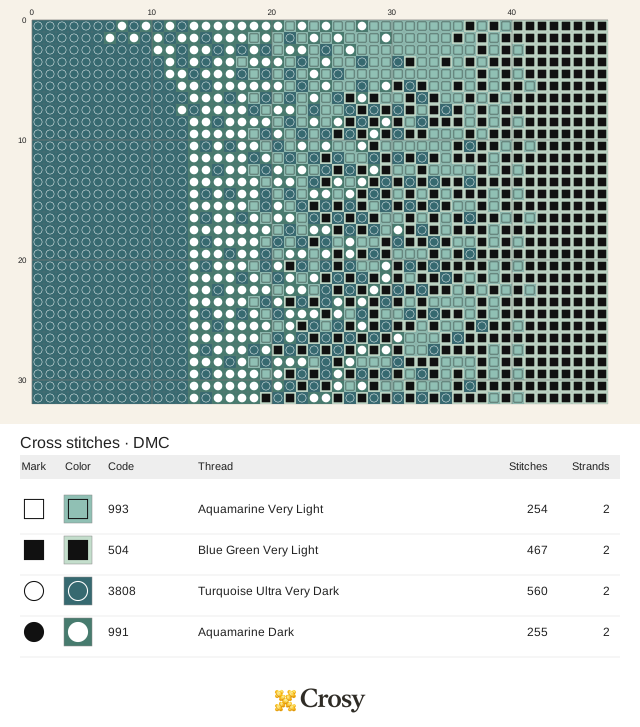
The applied Off result. Open this screenshot at full size to inspect the actual values. New uploads start with different size and color defaults; use the settings above to reproduce this lesson.
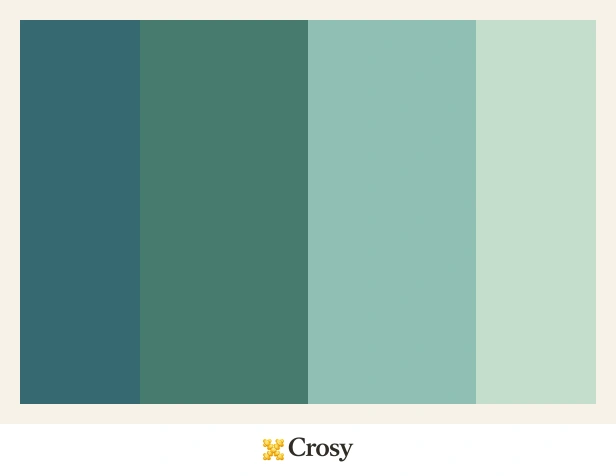
The gradient selects DMC 993, 504, 3808 and 991. Both Off and On use those same four thread identities. Changing the color limit, source or crop would be a different comparison. Screen swatches estimate appearance; use the exact codes in the downloaded key when checking thread identities.
2. Try On, then choose whether to apply it
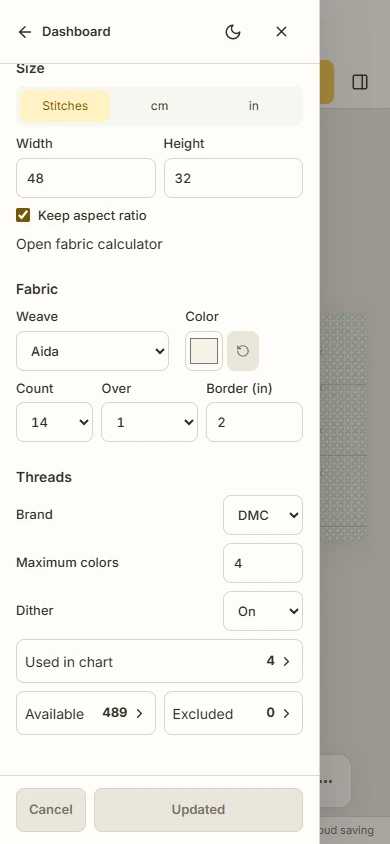
In Setup's Threads section, change Dither to On. On a narrow screen, open Setup first and scroll to Threads. The Update button becomes available, but the applied chart and saved project still contain the previous Off result. A selected setting is not an applied conversion.
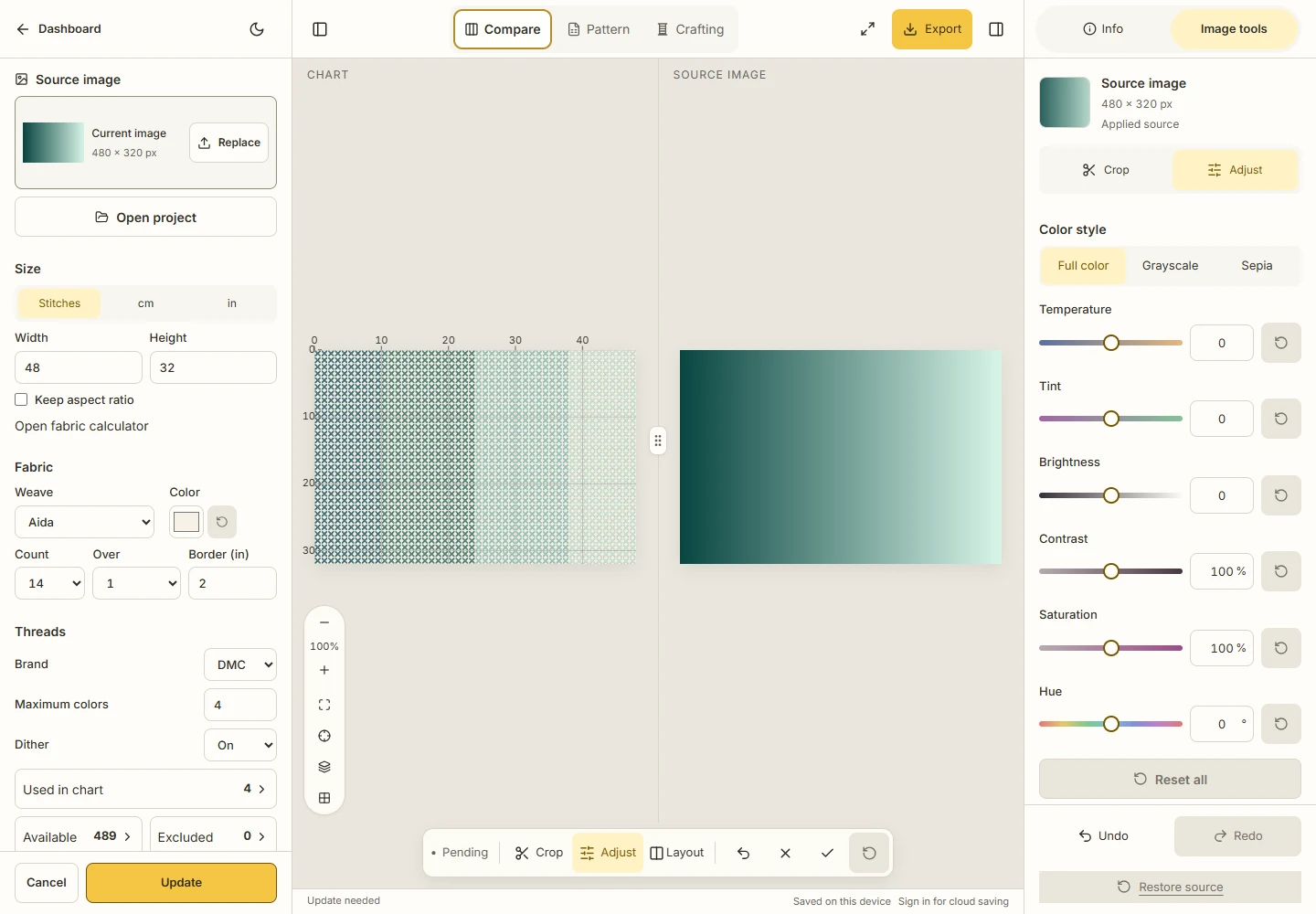
On is selected, but not yet applied. The chart still belongs to the Off result. Choose Cancel to restore the applied setting, or Update to convert.
For a safe first trial, choose Cancel and check that Dither returns to Off. Then select On again and choose Update. Wait for Updated, then open Pattern to inspect individual cells.
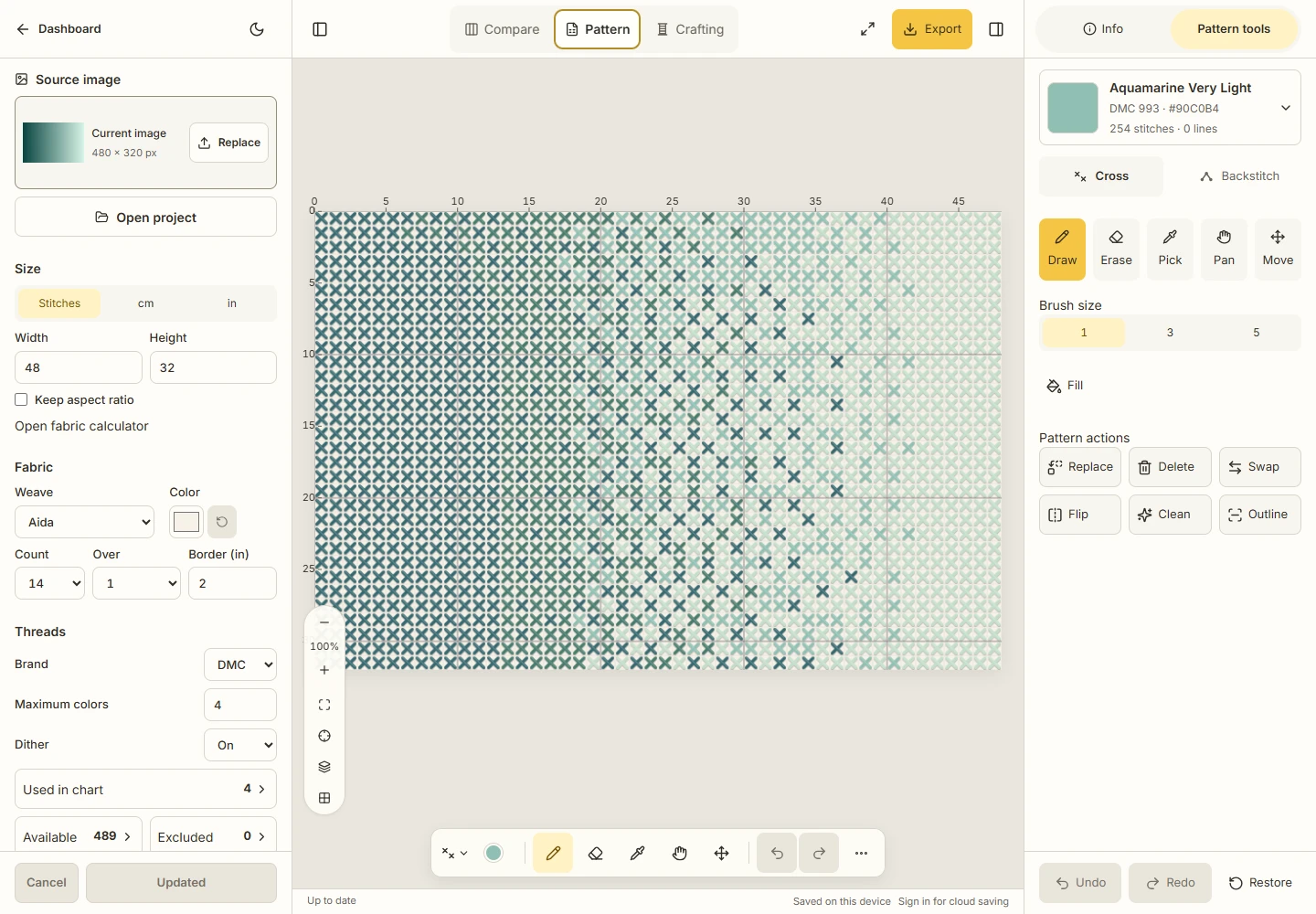
The applied On result. Look at the individual Crosses as well as the overall transition; mixing colors can introduce many scattered cells.
On mobile, the same setting and fixed Update action are in the Setup drawer:
3. Read the measured gradient result
| Result | Used colors | Crosses | Isolated cells |
|---|---|---|---|
| Off | 4 | 1,536 | 0 |
| On | 4 | 1,536 | 379 |
574 of 1,536 cell positions change thread color between Off and On. The source image and number of stitched cells do not change. Off produces broad vertical bands in this particular study; On distributes the same four colors across their boundaries. Compare the complete PDF keys to see each color's actual Cross count, rather than assuming its quantity stays constant.
Here an isolated cell has no immediately adjacent cell of the same color above, below, left or right. Diagonal neighbors do not count. This is the same board diagnostic used for the comparison, not a count of mistakes, thread cuts, minutes, skeins or finished-fabric quality. The scattered cells may be doing the color-mixing work you chose On to obtain.
4. Check the flat-color control
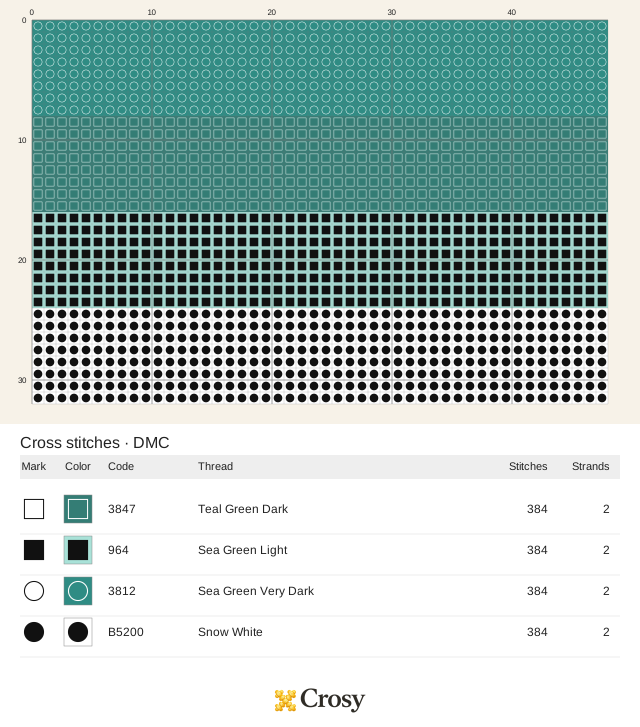
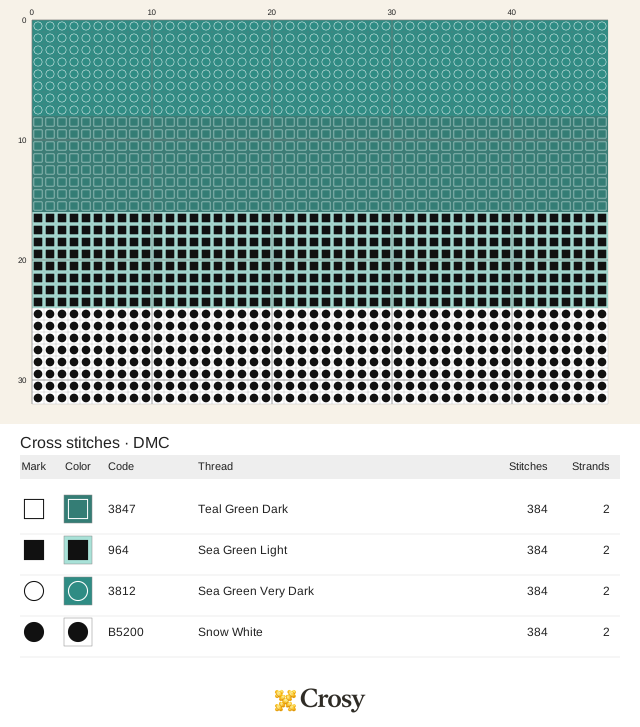
Repeat the upload and settings with the flat-band PNG: 48 × 32, Maximum colors 4, full rectangular crop and neutral adjustments. Its bands use the screen colors for DMC 3812, 3847, 964 and B5200. This is a separate input and palette from the gradient, so compare Off with On within this pair.
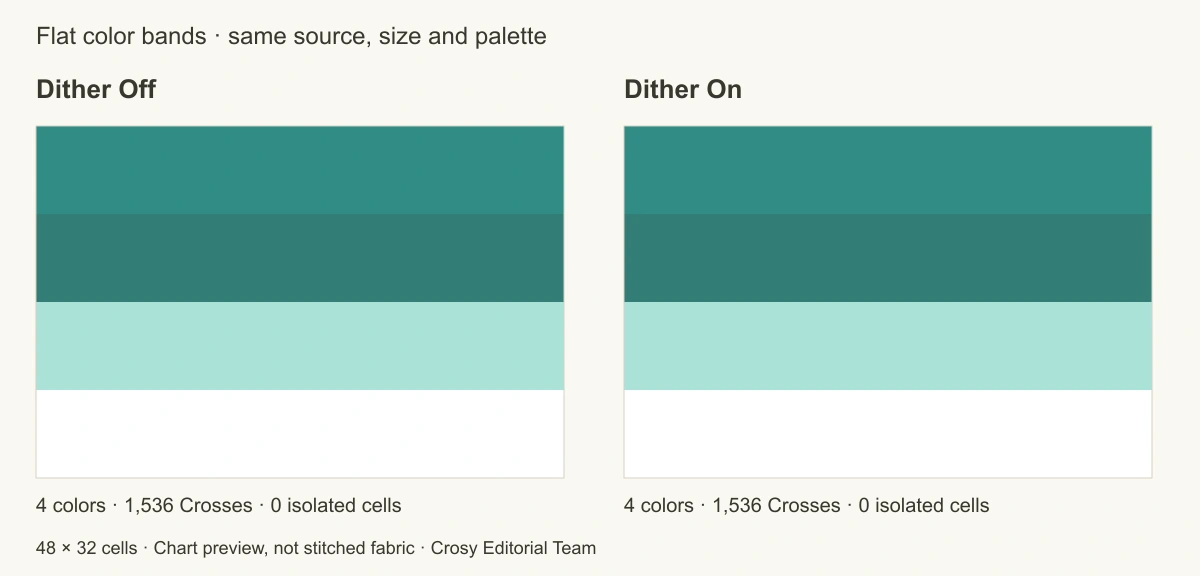
The exact flat-color study is unchanged by Dither in this controlled case. Other logos or graphics may contain antialiased edges or extra shades and can behave differently.
Both flat-band results have four used colors, 1,536 Crosses and zero isolated cells. Zero cell positions change color. Each of the four thread entries has 384 Crosses. The white band is 384 B5200 Crosses, not empty fabric. On is therefore not a universal improvement button, and a flat graphic is not guaranteed to change just because the setting says On.
5. Keep the version that serves your image
- Try both settings when a reduced palette creates visible bands in a gradient. Inspect the complete chart and a close view before deciding whether the extra dispersed colors help your intended result.
- For flat shapes, begin by inspecting Off. Check outlines and antialiased edges before assuming your image will match the unchanged band control.
- If the On chart looks too scattered for your purpose, select Off and choose Update again. In these untouched examples, Off → On → Off returns exactly the original cell colors. Cancel only cancels pending settings; it does not revert an already applied conversion.
Make this choice before manual stitch edits or progress marking. Save an editable backup first if you already have work to preserve. Updating a manually edited chart can ask to create a clean chart version; it is not a promise to carry those edits or progress into a new conversion. Follow the actual confirmation rather than treating Update as an undo command.
The confetti and protection lesson handles a later task: inspecting reversible Clean operations and protecting intentional details. Cleaning every isolated cell could remove the mixture you just chose. This lesson does not apply Clean or measure a physical stitching result.
Download the complete examples
Each PDF has an overview, counted chart and complete thread key. The supplied PDFs use A4 landscape, Fixed 4 mm chart cells; that is reading scale, not the size of a Cross on 14-count fabric. Print at 100% to check the chosen chart scale; physical printer margins and stitched results still need your own check.
| Example | Off | On |
|---|---|---|
| Teal gradient | Crosy project Cell CSV | Crosy project Cell CSV |
| Flat bands | Crosy project Cell CSV | Crosy project Cell CSV |
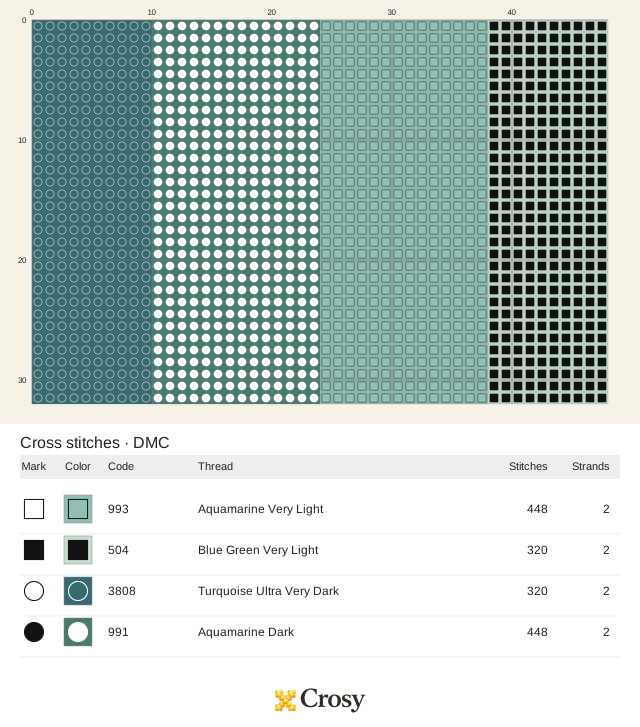
File notes explain the inputs, scale and one-based CSV coordinates. Comparison data contains all four thread keys and the measurements used above.
For a full-size color preview, open the gradient Off or On, or the flat-band Off or On. Use the PDF or SVG when you need the counted chart and key.


To reopen a supplied result, download its Crosy project, open the editor, and choose Open project. Each backup includes its source PNG and applied conversion settings. All 1,536 cell identities in each of the four supplied projects were checked after a fresh import.
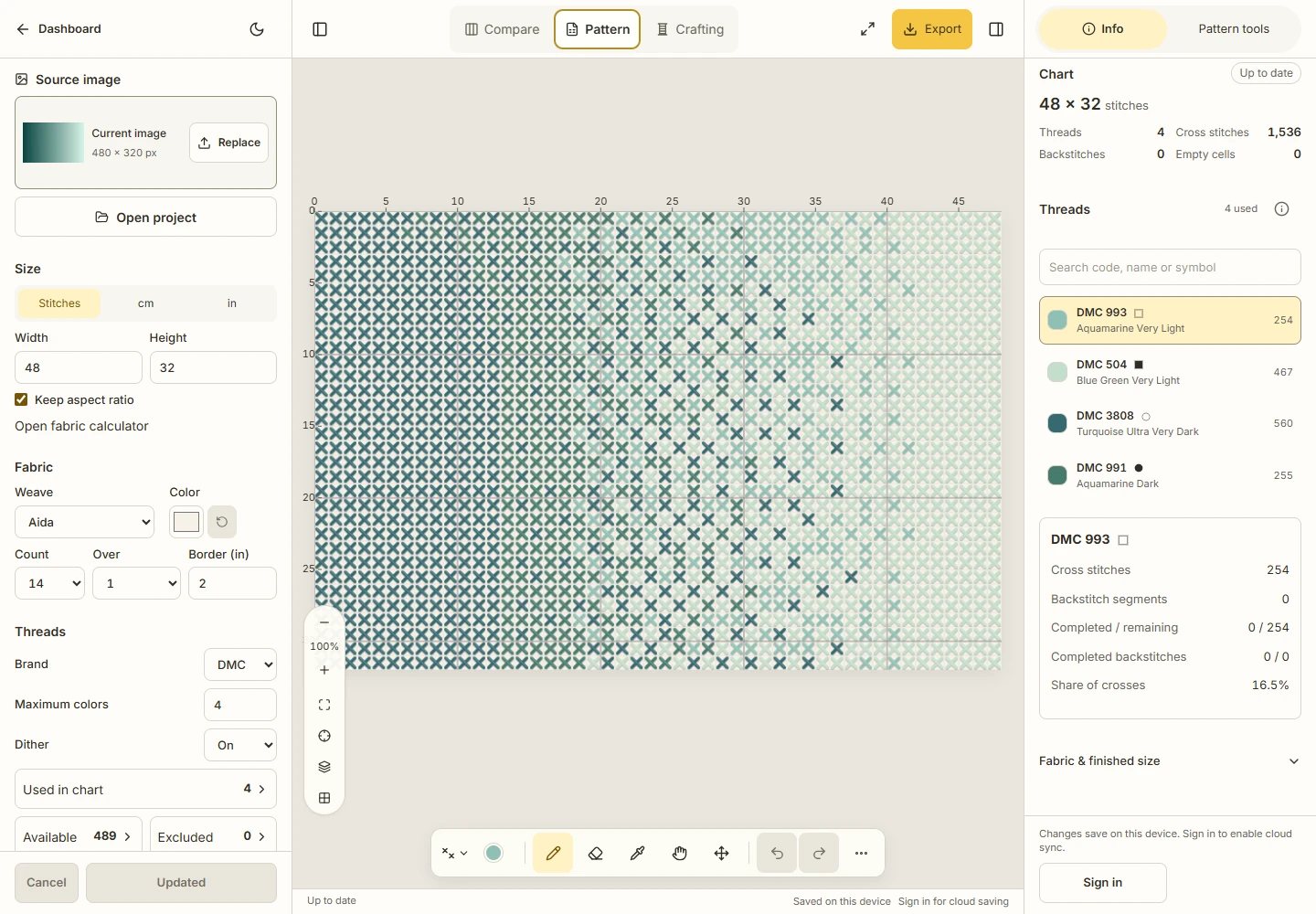
The downloaded gradient On project reopened through Open project.
These supplied lesson files do not change the export options for your own projects. The PDF and SVG show the chart and key; the native project preserves editable state. See export and backup help for those different roles and the Workbench tutorial for the other setup controls.